
This guide will demonstrate how to enable the BitLocker startup PIN for pre-boot authentication on Windows 10 with Microsoft Intune. I will walk through how to accomplish this in a nearly fully automatic way. Let’s start with some facts around BitLocker to understand the technology more precisely. In fact, I think a pre-boot startup PIN is not always necessary. To explain my point of view a bit further, we need to have a more detailed look at the encryption key material handling of BitLocker. The key material security is based mainly on the trusted computing platform concepts. Easy speaking this is the protection of the key material with a TPM (aka TPM only scenario) or with a TPM and pre-boot authentication startup PIN (aka TPM+PIN scenario).
How does BitLocker key protection work?
First, we need to understand the general procedure of how BitLocker will get access to the encryption key. The Trusted Computing Group introduced the trusted computing platform. In short, this board defined measures for trusted computing. From interest here is the Endorsement Key and the Sealed Storage concept. The underlying idea is to bind private information to the platform configuration to generate the Sealed Storage. The platform configuration includes hardware and software which is being used. The concept of the endorsement key is simple. It is a generated key during manufacturing time on a chip. The key cannot be changed and will never leave the chip. In general, both these concepts are widely known by people in the form of the Trusted Platform Module (TPM). The TPM has an endorsement key and can only be accessed from unmodified and untampered hardware and software configuration.
In a widely used standard configuration of Microsoft Windows 10, BitLocker is used with a TPM only key protection to protect BitLocker key material. As already explained Windows uses so called platform configuration registers (PCRs) to measure the state of hardware and software configuration (compare article TPM platform validation profile) and releases the key material in an unmodified and untampered configuration is available. We can easily say the integrity of the configuration is proven and therefore the key material is released for BitLocker decryption usage. This leads to a situation, that an attacker needs the complete hardware and can’t modify the platform configuration otherwise the key material is not released. Even in case the complete hardware is stolen, the device might reach the platform configuration state to boot up, but only until the normal Windows logon. At this point in time the attacker needs to overcome the Windows logon which is protected from brute force attacks by slowing down logons retries, in case of unsuccessful logons. In fact, this is a pretty safe configuration to run Windows 10 with BitLocker protection.
No downside at all?
Not really, there are always bypasses in various IT systems and this is true for this BitLocker configuration as well. The fact, that in case of an unmodified platform configuration, the key material is released and put into memory for cryptographic operations can be used for various attacks.
Attacks by accessing the memory in various ways can finally give you access to the BitLocker key material. For example, Direct Memory Access (DMA) ports and Plug and Play mechanisms are used to gain access to memory during Windows run time (aka side channel attacks). But also, the fact that cooled down transistors are not losing their programmatic state immediately, can give the attacker enough time to dump the memory and get BitLocker key material. The latest attack was done by using electric engineering tools like oscilloscope and logic analyzers to read the signals directly from the wires/bus (aka TPM sniffing). For interested readers I recommend reading – Extracting BitLocker Keys from a TPM.
Do I need to worry now?
I don’t think so! Security is always a cat and mouse game, attackers getting better and defenders build better protections. Attacks against BitLocker key material and the platform exist, and new ones will likely be found in future. In the meantime, you must think about who you want to protect your data against. If you target nation state hackers, I don’t think that all this is enough as data will be exfiltrated in some way anyway. If they can’t easily target your device, they will have a complete suite case full of options to accomplish their goals and finally get your data.
Security is about building defense lines and this involves different areas and different technology to finally operate a secure enough but still usable system. I will explain this by using an example. We can choose our hardware wisely to eliminate some side channel attacks in advance. In fact, the Windows 10 hardware certification program makes sure some of these attacks are eliminated by the design of modern hardware. Second, we build several layers of protection around our data. This includes full disk encryption (FDE), state of the art security configurations in Windows, anti-malware protections which can respond immediately in case of threats and malicious behavior, and entity security by encrypting important data individually. The overall security posture of your device (and of course the used services, but these are not in scope of this article) define a successful defense strategy. A well-designed workplace solution and the services around it, with the right principles, will give the average and skilled attacker a hard time as the defense layers are able to counter in all stages of an attack.
Additional countermeasures?
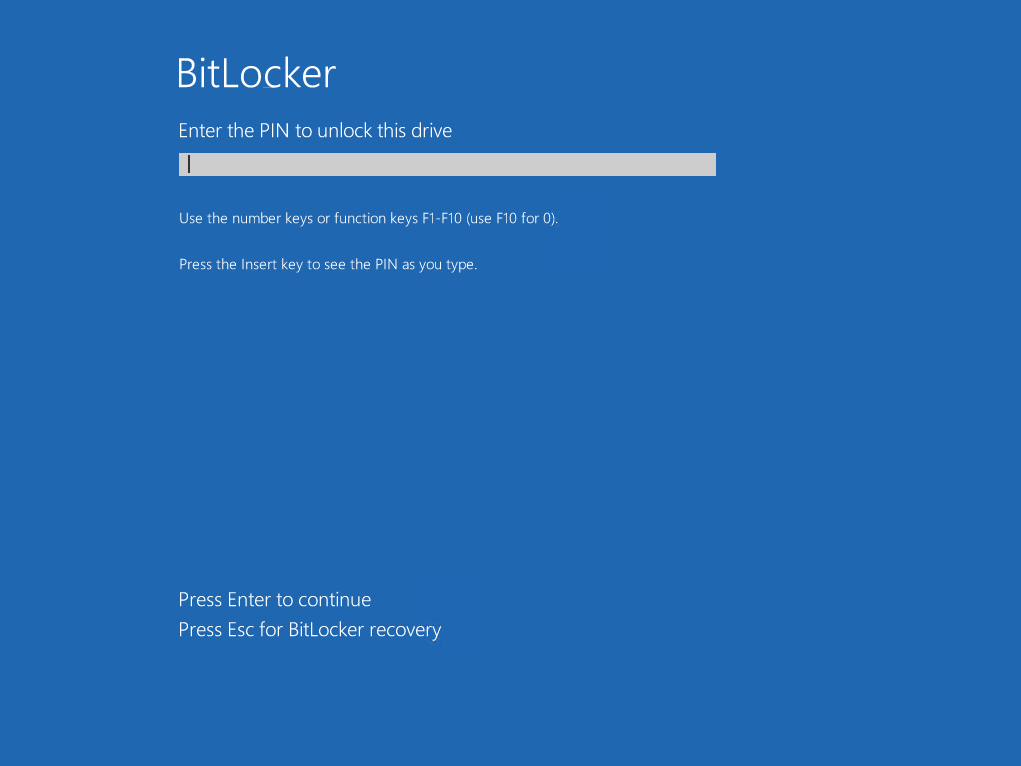
The BitLocker standard configuration in combination with other security measures will balance convenience in usability and security (please also read the Microsoft article BitLocker Countermeasures). If you think your protection level is not enough and a good overall solution can’t be accomplished in your setup, and you want to bolster your security by introducing pre-boot authentication with an additional PIN, the following guide is right for you. The additional PIN requirement during startup adds a kind of control gate to the TPM operation. The new procedure with a startup PIN is as follows. The TPM will not release any key material since the platform integrity is verified and in addition the startup PIN must be entered. Without successful PIN entry during early startup phase, the TPM will not release the key material and therefore no key material will be loaded into memory, which renders most cold boot attacks useless. This is an example of how a BitLocker pre-boot authentication startup PIN looks like:
Challenges while enabling TPM+PIN with Microsoft Intune on Windows 10
In my guide Enabling BitLocker on non-HSTI devices with Intune I’m essentially describing how to implement BitLocker encryption on Windows 10 devices with Microsoft Intune for all your devices, even the ones not holding special hardware certifications (HSTI). The guide shows the Microsoft Intune configuration profiles and how to achieve this in a automatic and silent way. The result is an encrypted OS disk without any interaction with the user.
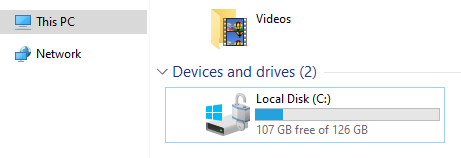
And here lies exactly the challenge when we talk about a user definable PIN. Sure, we could fall back to the Intune capabilities to trigger the BitLocker encryption wizard and not silently encrypt the OS disk. To say it in different words, enabling silent BitLocker encryption will only work with TPM only and not if you enforce a PIN. As soon as you require a PIN you must rely on the BitLocker encryption wizard and the user you must click through it.
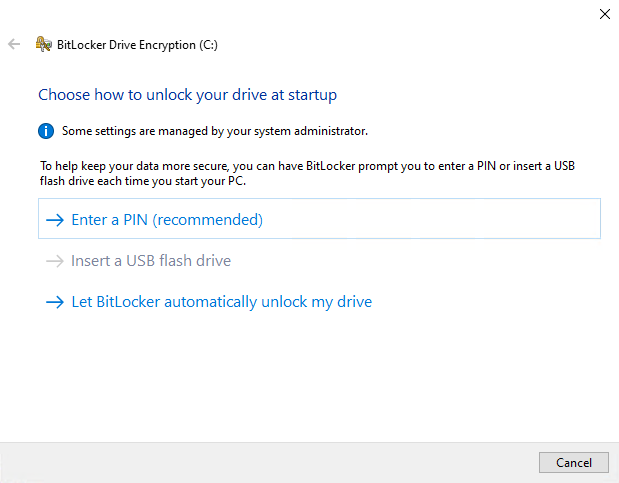
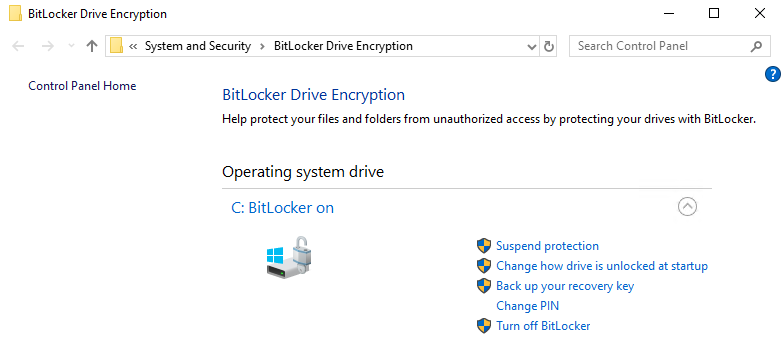
The next challenge is that we have to provide a way to do all this as a standard user. Standard user permissions are common and a good security practice. The manual way of enabling BitLocker needs administrative permissions, can be seen on the small UAC shield icon in front of the links:
The solution?
We need a way to ask the user for the PIN and encrypt the OS disk as soon as possible. The idea is to silently encrypt the disk and ask for the PIN later in the process. This way we would have a secured device right after deployment and the user must set his individual PIN afterwards. I follow the same configuration as in my last BitLocker article Enabling BitLocker on non-HSTI devices with Intune and allow “additional authentication at startup” > Allow TPM and Allow startup PIN with TPM. It is not needed to configure the “OS drive Recovery” options as the silent encryption will always backup the key to AAD. The settings below are enough to have everything in place what’s needed:
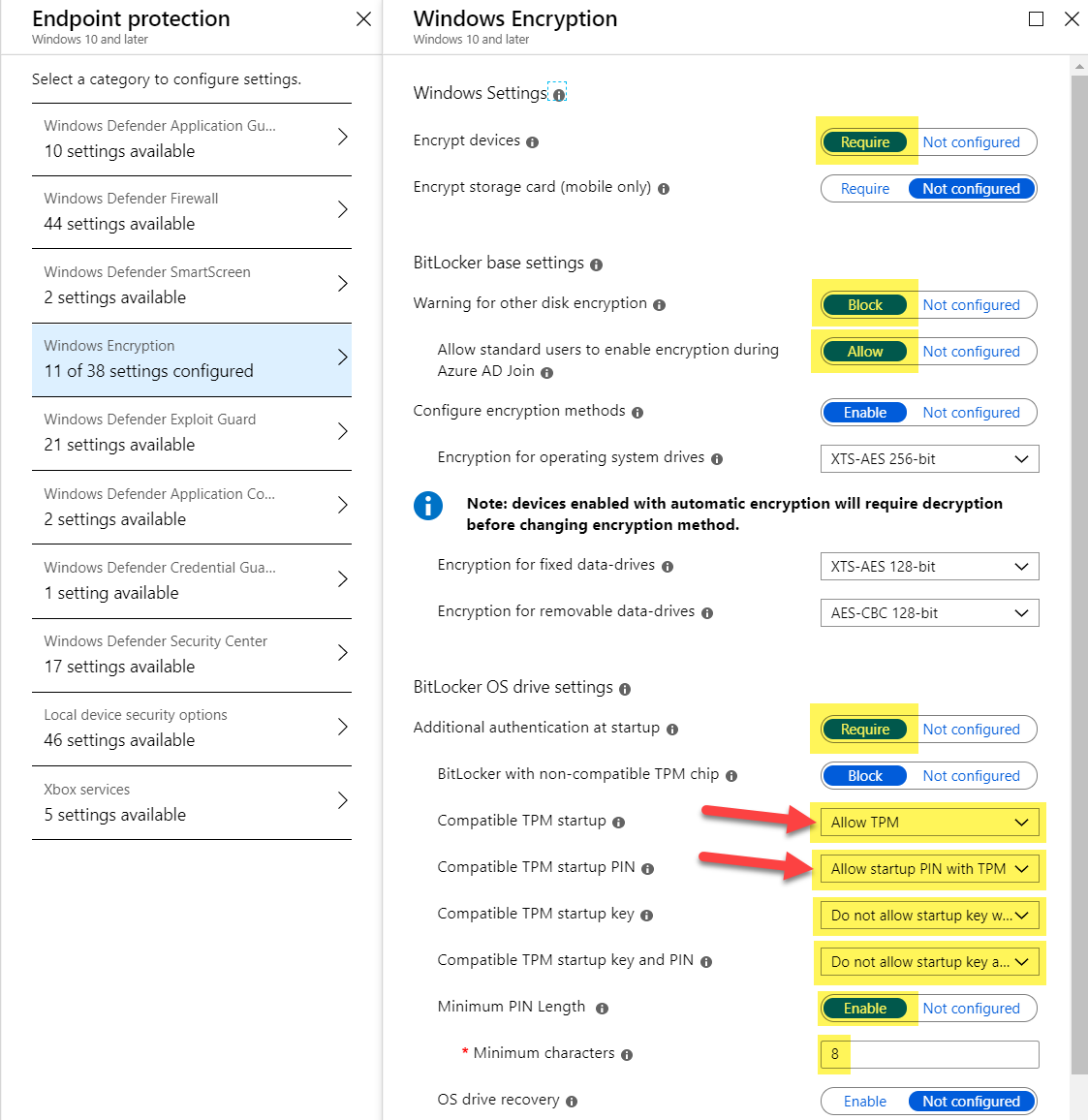
The challenge with this approach is, that we have to ask for the PIN in user context with standard user permissions and the TPM+PIN key protector must be set in system context.
I’ve created an Intune Windows app (Win32) which has a PowerShell script logic to display a PIN entry dialog and to set the BitLocker key protector TPM+PIN.
SetBitLockerPin – Intune Win32 app files
https://github.com/okieselbach/Intune/tree/master/Win32/SetBitLockerPin
The .intunewin package SetBitLockerPin can be created easily with the Intune Content Preparation Tool and the following command:
.\IntuneWinAppUtil -c .\SetBitLockerPin -s SetBitLockerPin.ps1 -o .\ -q
This way we can target the app as available to the device or user and the user is able to set the PIN as a standard user. We target the Windows app in system context for install. To escape from the system context, I utilize the ServiceUI.exe from the Microsoft Deployment Toolkit (MDT) to present the PIN dialog provided by a small PowerShell script.
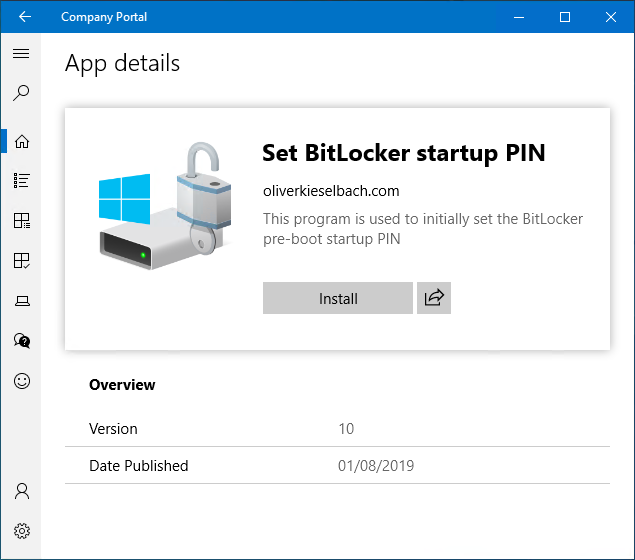
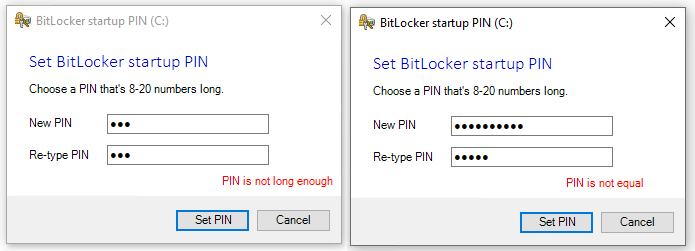
The dialog will find the configured minimum PIN length from Microsoft Intune and looks very similar to the original Microsoft Windows BitLocker change PIN dialog. I thought it helps when keeping the same style in regards of creating user adoption material later. The PIN creation dialog can be run with standard user permission as it is triggered from the Company Portal. This is how it looks like:
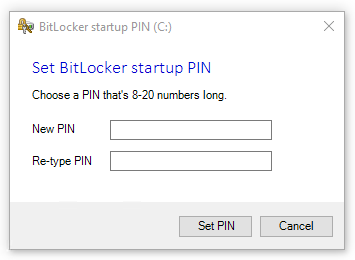
After entering the new startup PIN, the entry is passed back via a temporary file, encrypted via DPAPI to the system context. The PIN is read and decrypted by the calling script and used to configure the new TPM+PIN key protector for BitLocker. The temporary file is immediately deleted. This is an easy approach to transfer this data and the PIN itself is only short lived-in encrypted (DPAPI) in a temp file available. Basic input validation is provided like PIN length, simple PINs (1234 or 4321), and correctly re-entered PIN:
UPDATE: The dialog now even supports multi-language. There is an additional language.json file in the GitHub repo which can be used to add additional languages. The json file has sections like en-US, just copy it and change en-US for example to fr-FR and replace the English strings with French ones.
"en-US": {
        "characters": "characters",
        "numbers": "numbers",
        "choosePin": "Choose a PIN that's {0}-20 {1} long.",
        "PinIsNotEqualNotLongEnough": "PIN is not long enough",
        "PinIsNotEqualOnlyNumbers": "Only numbers allowed",
        "PinIsNotEqualSettingNow": "Setting valid PIN now...",
        "PinIsNotEqual": "PIN is not equal",
        "PinIsTooSimple": "PIN is too simple",
        "BitLockerStartupPIN": "BitLocker startup PIN",
        "RetypePIN": "Re-type PIN",
        "NewPIN": "New PIN",
        "buttonCancel": "&Cancel",
        "buttonSetPin": "&Set PIN",
        "labelSetBLStartupPin": "Set BitLocker startup PIN"
    }
To make sure the BitLocker PIN creation dialog can only be used once I’ve created a detection logic script for the Intune Windows App (.intunewin). This small script DetectBitLockerPin.ps1 checks if the TPM+PIN protector is already set:
Write-Output $(Get-BitLockerVolume -MountPoint $env:SystemDrive).KeyProtector | Where { $_.KeyProtectorType -eq 'TpmPin' }
Use the DetectBitLockerPin.ps1 as a custom detection script in Intune and use the following command for install/uninstall (I don’t have an uninstall but it is a mandatory field)
powershell -ex bypass -file SetBitLockerPin.ps1
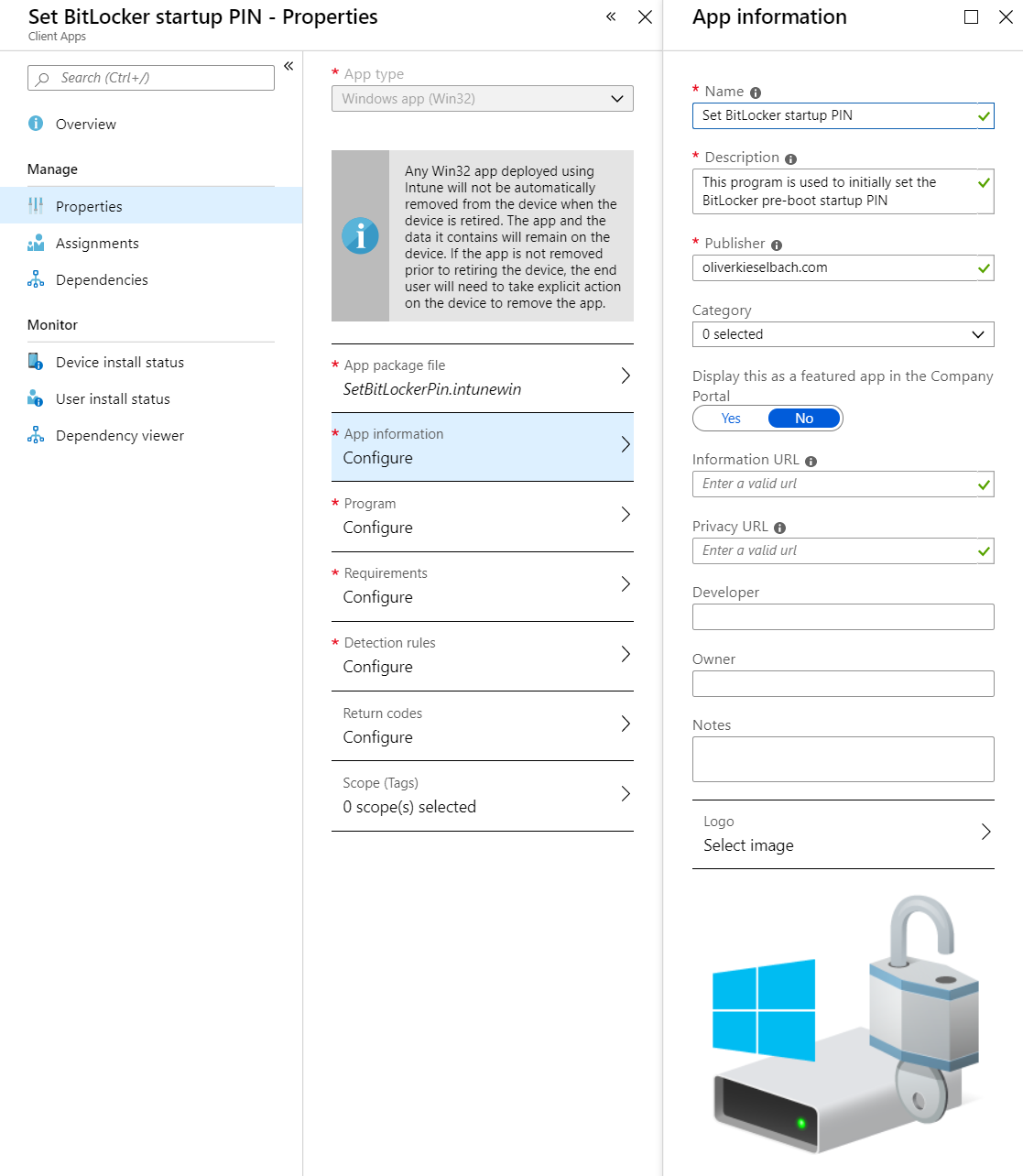
Your app Set BitLocker startup PIN app should look like this. The image is also provided in the GitHub:
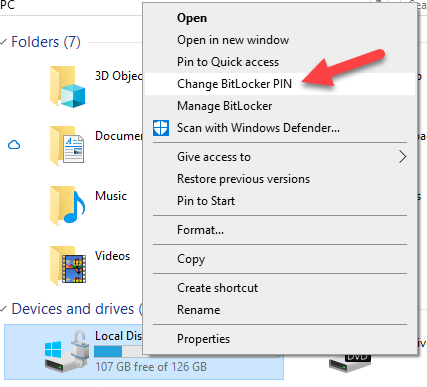
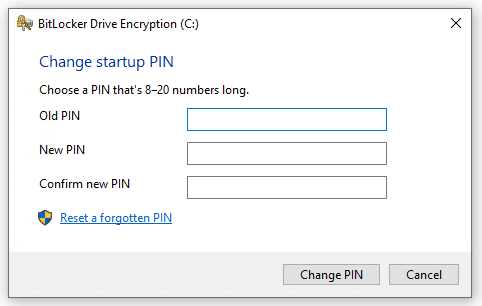
For further demonstration the very similar Windows Change BitLocker PIN dialog below. We can see it can be run without administrative permission as well:
What about reporting on the Key Protector usage?
As we have no initial PIN creation enforcement here, I thought it is good to have a way, to lead your users who need additional pre-boot authentication, to set the PIN. I’ve created a small PowerShell script which will run periodically (registers itself as scheduled task) and upload the used BitLocker key protector type information to an Azure Table Storage.
The creation of the Azure Table Storage is quite simple. For a more detailed explanation have a look at my fellow Roger Zander’s blog post BitLocker management with Azure Table Storage
The upload script for the BitLocker key protector type information
https://github.com/okieselbach/Intune/blob/master/ScheduleAndUploadBitLockerKeyProtectorType.ps1
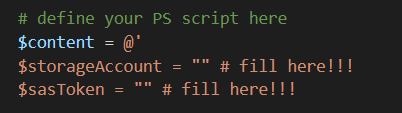
You have to fill in the Azure storage account name and the generated SAS signature for the table storage (compare Rogers post if unclear):
Upload it to Intune as a PowerShell script and assign it to your devices you like to protect:
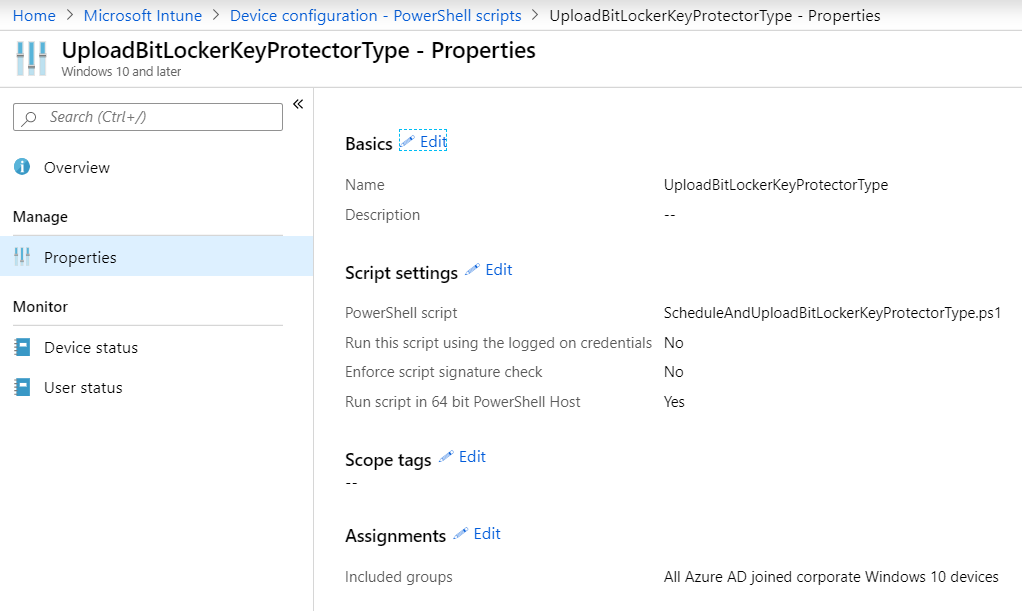
The script will create a local script on the device and a scheduled task to run it periodically. Remember if you don’t like the script to run on your devices anymore, you have to create a uninstall script which deletes the script from C:\ProgramData\CustomScripts\UploadBitLockerKeyProtectorType.ps1 and the scheduled task UploadBitLockerKeyProtectorType.
After Azure table storage creation and PowerShell script deployment, we have an easy reporting solution if the targeted device group has set the PIN accordingly to the organizational requirement.
The table storage can be viewed and queried directly in the Azure Portal:

Or you connect the table storage directly with Microsoft Excel and analyze your data there:
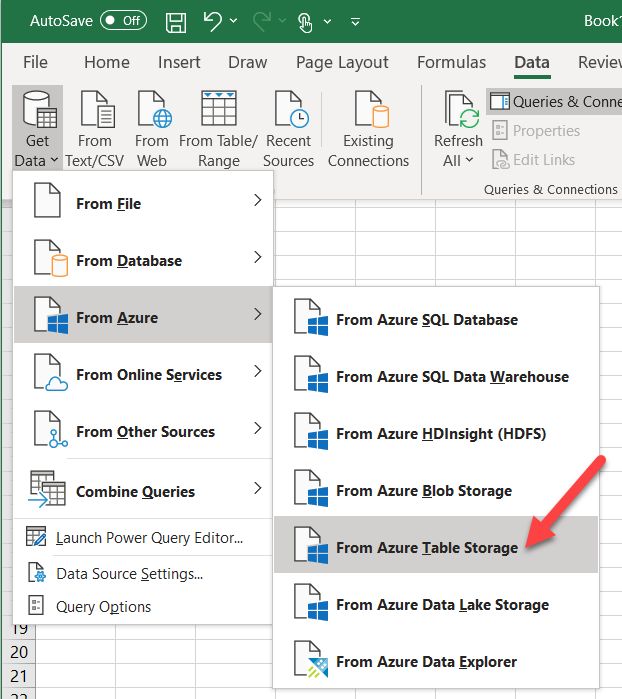
Follow the wizard and provide the Azure storage account and access key and import the table data:
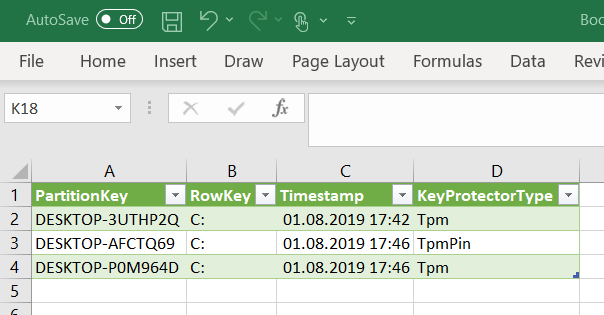
What about user notifications?
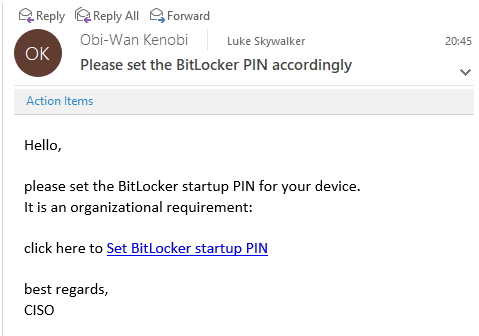
To make life easier for the end users or to simply remind them to set the PIN, we can build a customized email and provide a direct link to the app in the company portal. This way the user can be targeted directly and asked to set the PIN.
First, we need to find the direct link to the app for the Company Portal. This is actually very easy but not obvious. Just use the Share button on the app in the company portal and send the information to you by email or to a OneNote:
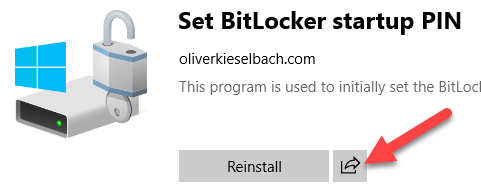
After this you will have a link with the application guid in the form:
companyportal:ApplicationId=<yourguid>With this link you can craft an email to direct your users to the app in Company Portal. Remember this special link can only be used in an email app like Outlook who displays this as an actual link. Outlook on the web will not show it as a link:
Targeting as required app
UPDATE: 14/Oct/2022
If you like to target the solution as required app, the requirement rules can help! See my article here:
Post ESP Intune Win32 apps installations
Summary
I’ve demonstrated a way to securely deploy Windows 10 with encryption and enabled easy handling to add the PIN as additional pre-boot authentication for BitLocker. Although this is a solution to set a startup PIN with Intune, I really recommend thinking twice as a PIN might not bring additional protection if the users are bugged by yet another PIN for the system. If they set them to the same as Windows Hello for Business or even worse, they write them down on a post-it and store them along with the device you have no security improvement. This would lead to a situation where an attacker has quite an easy situation, just steal the device and use the PIN written on the post-it for pre-boot authentication startup PIN and for Windows Hello for Business. This situation would have dramatically lowered your security posture, which was surely not intended. A pre-boot startup PIN can protect but should be set on systems where users are understanding the risk and actively supporting this security measure. I think for most users, security must be relatively simple, otherwise they won’t support you or even do things which will lower your security.
Thanks for reading and always think twice about security settings and how they will bring value or maybe harm your environment.
 Modern IT - Cloud - Workplace
Hi, how can i force it to just set the password to 123456 instead of entering myself ? are you able to assist me on this ?
Thank you.
.\ServiceUI.exe -process:Explorer.exe “$env:SystemRoot\System32\WindowsPowerShell\v1.0\powershell.exe” -NoProfile -WindowStyle Hidden -Ex bypass -file “$PSScriptRoot\Popup.ps1”
$exitCode = $LASTEXITCODE
$pathPINFile = $(Join-Path -Path $([Environment]::GetFolderPath(“CommonDocuments”)) -ChildPath “PIN-prompted.txt”)
If ($exitCode -eq 0 -And (Test-Path -Path $pathPINFile)) {
$encodedText = Get-Content -Path $pathPINFile
if ($encodedText.Length -gt 0) {
$PIN = [System.Text.Encoding]::Unicode.GetString([System.Convert]::FromBase64String($encodedText))
Add-BitLockerKeyProtector -MountPoint $env:SystemDrive -Pin $(ConvertTo-SecureString $PIN -AsPlainText -Force) -TpmAndPinProtector
}
}
# Cleanup
Remove-Item -Path $pathPINFile -Force -ErrorAction SilentlyContinue
Hey eugene,
The easiest way to totally skip the popup would be a script, running in system context with the following line:
Add-BitLockerKeyProtector -MountPoint $env:SystemDrive -Pin 123456 -TpmAndPinProtector
That’s it, it will ad a TPMandPIN Protector with PIN 123456
best,
Oliver
Could you please elaborate more on this? How could we please set a default PIN rather than the user creating one?
Hey Calvin,
just run something like this:
Add-BitLockerKeyProtector -MountPoint $env:SystemDrive -Pin $(ConvertTo-SecureString 123456 -AsPlainText -Force) -TpmAndPinProtector
best,
Oliver
Hi oliver..
I get this code, when i run it manuly
PS C:\Temp\SetBitLockerPin> .\SetBitLockerPin.ps1
Program ‘ServiceUI.exe’ failed to run: Den angivne eksekverbare fil er ikke et gyldigt program til denne operativsystem
platform.At C:\Temp\SetBitLockerPin\SetBitLockerPin.ps1:9 char:1
+ .\ServiceUI.exe -process:Explorer.exe “$env:SystemRoot\System32\Windo …
+ ~~~~~~~~~~~~~~~~~~~~~~~~~~~~~~~~~~~~~~~~~~~~~~~~~~~~~~~~~~~~~~~~~~~~~.
At C:\Temp\SetBitLockerPin\SetBitLockerPin.ps1:9 char:1
+ .\ServiceUI.exe -process:Explorer.exe “$env:SystemRoot\System32\Windo …
+ ~~~~~~~~~~~~~~~~~~~~~~~~~~~~~~~~~~~~~~~~~~~~~~~~~~~~~~~~~~~~~~~~~~~~~
+ CategoryInfo : ResourceUnavailable: (:) [], ApplicationFailedException
+ FullyQualifiedErrorId : NativeCommandFailed
It looks like the ServiceUI.exe binary is not in your package… the translated error message: “The specified executable file is not a valid program for this operating system” indicates that ServiceUI maybe in the wrong bitness x86 or x64 issue? Or maybe it is simply missing…
the file is in the same folder? i download the serviceui from the githup.
is there another version for 64Bit?
Maybe download the x64 bit version again here: http://live.sysinternals.com/
best,
Oliver
thanks 🙂 but it looks like the ServiceUI.exe files dont exsist on Sysinternals ?
My fault… that‘s what happens if you do too much things in parallel. It is from MDT. So you need to look it up in the MDT files. Follow the instructions from Steve, that’s also what I did. 👍
Maybe try the link listed in the blog to download the MDT installer – https://www.microsoft.com/en-us/download/details.aspx?id=54259 – and install it, then grab the ServiceUI.exe tool from the install directory? I think that’s what I did…
I wanted to give users a little more reassurance that something had happened… so anyone reading along and wanting to do the same could maybe do something like this…
Edit SetBitLockerPin.ps1, at the line Add-BitLockerKeyProtector, change it like this:
try {
Add-BitLockerKeyProtector -MountPoint $env:SystemDrive -Pin $(ConvertTo-SecureString $PIN -AsPlainText -Force) -TpmAndPinProtector
.\ServiceUI.exe -process:Explorer.exe “$env:SystemRoot\System32\WindowsPowerShell\v1.0\powershell.exe” -NoProfile -WindowStyle Hidden -Ex bypass -file “$PSScriptRoot\SuccessfulMessage.ps1”
}
catch { Out-Null }
Then create a new PS1 file called SuccessfulMessage.ps1 to sit along with the others, and inside it have something like this:
Add-Type -AssemblyName PresentationFramework
[System.Windows.MessageBox]::Show(“BitLocker PIN set successfully.`n`nNext time you (re)start your device you’ll be asked for the PIN.”,”BitLocker startup PIN”,0,64)
Good point, something I should add as well I think. Credits to Steve 👌
Oliver
Thanks for this topic, it is really helpful!
I downloaded everything and managed to figure out the serviceUI.exe before I even read the comments, but I am running into an issue whenever I ran the “SetBitLockerPin.ps1” script.
the exit code always returns -1 and it never calls the “Popup.ps1”.
I tried the popup.ps1 script by itself and it gave me the prompt to set the PIN.
any ideas?
=======================
Matched Processes
=======================
Process Found: [explorer.exe] ID [12308] SESSION [1]
=======================
Logon Lookup
=======================
API [ProcessIdToSessionId] Error: [5]
No matching logon sessions found with session ID [1]!
=======================
Exiting with [-1]
=======================
Hey MJ,
sorry for my delayed response, From what you are describing I think the package runs during device context. So I think you may have targeted the app and it is installed during Autopilot ESP device context phase. This would explain why ServiceUI.exe does not found the session id. Did you try to target the app as required? If so, please target it as available and wait until the desktop is shown and then try to start it.
best,
Oliver
Hi Oliver!
Do you happen to know what happens with Hybrid Azure AD Join where local AD policy is requiring Bitlocker PIN code? I think Bitlocker activation during Autopilot will wail and there is not much to do except modifying AD policies?
Hey NKJ,
I think you are right. You would maybe need a clever scoping maybe via WMI filter or something else to exclude those devices from the local AD GPOs.
best,
Oliver
Hi Oliver,
Trying to get your script to work but it keeps failing when it tries to install.
Windows 10 ver 2004
Hey Michael,
we need a little bit more content here. What is displayed as error, how is the package assigned, as available? did you try to use the script in a system context cmd (cmd started with psexec as system)… did you check with BitLocker cmdlets what happened?
best,
Oliver
I’m having the same issue with the packaged win32 file- installs and then changes to failed with error:
Error code: 0x87D1041C
The application was not detected after installation completed successfully
Suggested remediation
Couldn’t detect app because it was manually updated after installation or uninstalled by the user.
I’ve installed successfully on mine so not sure what the issue is or where it is checking for installation.
my steps:
placed setupbitlockerpin.ps1
and popup.ps1 in folder
ran intune prep tool to specify folder, and source file (setbitlockerpin.ps1) and output location.
Created win32 app on intune portal, uploaded .intune package, added your install command (also added this as uninstall as suggested), and set detection method to custom script and uploaded your DetectBitLockerPIN.ps1 as the method.
Does this look ok to you? My understanding is we places the necessary scripts (setbitlockerpin.ps1 and PopUp.ps1 into one folder, build the intune package and upload, then use the detection ps1 as a rule.
Also running Win10 20h2 or 2004
Hey Tim,
I think you missed the SerivceUI.exe, this small helper is necessary to run a user process from the system context. So please add it to the folder as well and the Popup.ps1 and SetBitLockerPin.ps1.
best,
Oliver
Hey Oliver,
Trying to use your script and it was failing. Attempting to run this manually as a test using PSExec to run in system context. Gave me the below. It doesn’t seem to want to run serviceui.exe and I’m not sure why. Any ideas?
PS C:\Temp\BitlockerPIN> .\SetBitLockerPin.ps1
Security warning
Run only scripts that you trust. While scripts from the internet can be useful, this script can potentially harm your
computer. If you trust this script, use the Unblock-File cmdlet to allow the script to run without this warning
message. Do you want to run C:\Temp\BitlockerPIN\SetBitLockerPin.ps1?
[D] Do not run [R] Run once [S] Suspend [?] Help (default is “D”): r
Program ‘ServiceUI.exe’ failed to run: The operation was canceled by the userAt
C:\Temp\BitlockerPIN\SetBitLockerPin.ps1:1 char:1
+ .\ServiceUI.exe -process:Explorer.exe “$env:SystemRoot\System32\Windo …
+ ~~~~~~~~~~~~~~~~~~~~~~~~~~~~~~~~~~~~~~~~~~~~~~~~~~~~~~~~~~~~~~~~~~~~~.
At C:\Temp\BitlockerPIN\SetBitLockerPin.ps1:1 char:1
+ .\ServiceUI.exe -process:Explorer.exe “$env:SystemRoot\System32\Windo …
+ ~~~~~~~~~~~~~~~~~~~~~~~~~~~~~~~~~~~~~~~~~~~~~~~~~~~~~~~~~~~~~~~~~~~~~
+ CategoryInfo : ResourceUnavailable: (:) [], ApplicationFailedException
+ FullyQualifiedErrorId : NativeCommandFailed
PS C:\Temp\BitlockerPIN> .\SetBitLockerPin.ps1
Security warning
Run only scripts that you trust. While scripts from the internet can be useful, this script can potentially harm your computer. If you trust this script, use the Unblock-File cmdlet to allow the script to run
without this warning message. Do you want to run C:\Temp\BitlockerPIN\SetBitLockerPin.ps1?
[D] Do not run [R] Run once [S] Suspend [?] Help (default is “D”): r
Program ‘ServiceUI.exe’ failed to run: The operation was canceled by the userAt C:\Temp\BitlockerPIN\SetBitLockerPin.ps1:1 char:1
+ .\ServiceUI.exe -process:Explorer.exe “$env:SystemRoot\System32\Windo …
+ ~~~~~~~~~~~~~~~~~~~~~~~~~~~~~~~~~~~~~~~~~~~~~~~~~~~~~~~~~~~~~~~~~~~~~.
At C:\Temp\BitlockerPIN\SetBitLockerPin.ps1:1 char:1
+ .\ServiceUI.exe -process:Explorer.exe “$env:SystemRoot\System32\Windo …
+ ~~~~~~~~~~~~~~~~~~~~~~~~~~~~~~~~~~~~~~~~~~~~~~~~~~~~~~~~~~~~~~~~~~~~~
+ CategoryInfo : ResourceUnavailable: (:) [], ApplicationFailedException
+ FullyQualifiedErrorId : NativeCommandFailed
PS C:\Temp\BitlockerPIN> .\ServiceUI.exe
Program ‘ServiceUI.exe’ failed to run: The operation was canceled by the userAt line:1 char:1
+ .\ServiceUI.exe
+ ~~~~~~~~~~~~~~~.
At line:1 char:1
+ .\ServiceUI.exe
+ ~~~~~~~~~~~~~~~
+ CategoryInfo : ResourceUnavailable: (:) [], ApplicationFailedException
+ FullyQualifiedErrorId : NativeCommandFailed
Hey Bob,
I think something went wrong with the download… If you run the ServiceUI.exe from PS you should get something like this:
C:\temp>.\ServiceUI.exe
Execute program interactively in target session. Must run from
SYSTEM context. If no session is specified, program will run
in session connected to keyboard/mouse (console).
Usage: serviceui [-nowait] [ [-session:] | [-process:] ] program [arg(x)]
-nowait Don’t wait for program completion. Exit
code will not be captured.
-session Specify session number to launch in.
-process Search for process; program will
launch in same session.
program Name of application to execute.
arg(x) Argument(s) for program.
Examples:
serviceui %windir%\notepad.exe
serviceui -session:1 %windir%\notepad.exe
serviceui -process:calc.exe %windir%\notepad.exe “\”my file.txt\””
serviceui -process:calc.exe “%windir%\notepad.exe” “\”my file.txt\””
=======================
Exiting with [-1]
=======================
Can you verify that the binary is okay. I downloaded the binary myself right now and the output above is what I get when running it on PS. You must get the same, otherwise it will not work.
best,
Oliver
Great article, may I please ask though what should be the ‘Output Data Type’ for the ‘DetectBitLockerPIN.ps1’?
Hey Calvin, the Detect Script is not for the Requirement rules, ist is a Detection rule, there you don‘t need any output data type.
Best,
Oliver
Massive help, thank you!
Hi Oliver,
I have been trying to get this implemented over the last few days, but I keep getting an installation failed error. I have published the application as available, looked through the comments for tips but still can’t get it to work.
I looked in the IntuneManagementExtension log and the only error I saw was -2147024896. I couldn’t find what that error means.
I have even tried to simplify the script so it doesn’t request user input and sets a default PIN using just the one powershell script:
Add-BitLockerKeyProtector -MountPoint $env:SystemDrive -Pin $(ConvertTo-SecureString 78945612 -AsPlainText -Force) -TpmAndPinProtector
If I run the script as the system account using psexec, it runs fine and sets the PIN correctly. I have tried this on several devices and get the same results.
Hey Ken,
your error is actually strange… If I convert it to hex it represents 0x80070000 which is clearly an error as errors start with 8 and the 7 stands for Windows, but normally then the error code follows which is in your case 0. hmmmm…
How did you try to run the small PS script? as a packaged Win32 app or as a PS script?
Were they really configured to run as System?
Which error do you see on the Intune side, what is displayed there as hex value?
I never had this issue with the package and for a lot of people it works flawlessly. Currently I’m out of ideas what is happening on your side. Can you provide answers for my questions?
best,
Oliver
Thank you for the great article,
I have the app deployed to devices via Intune, but I find sometimes it can be really slow the present itself, sometimes it is there immediately. others it can take 24 hours, despite the devce synced and recieving other configuration policies applied via intune. the slower devices have silent encryption enabled and fail the pre-req check when ran manually.
Has anybody seen this before?
Many Thanks
Hi Oliver,
Great article! I am little lost on how to exactly build the Intune Win32 app. When using the Intune Content Preparation Tool, I usually have to specify the source folder (where you have the .exe file), the setup file ( the name of the .exe file), and the Output folder (where your Output file will get generated). Can you walk me through how I would create this?
Hey Tasnuba,
I do it like this: .\IntuneWinAppUtil -c .\SetBitLockerPin -s Set-BitLocker-PIN.txt -o .\ -q
instead referencing the exe file I use the txt. it doesn’t matter, it will just use the name to generate the same same for the intunewin file. so in my case specifying BitLocker-PIN.txt will end up in a package BitLocker-PIN.intunewin.
best,
Oliver
Did anyone get it working to set this as required and just set a default pin instead?
If so can they share how they did it?
Cheers!
Hey Anthony,
If you just want a default PIN just use something like this:
Add-BitLockerKeyProtector -MountPoint $env:SystemDrive -Pin $(ConvertTo-SecureString 123456 -AsPlainText -Force) -TpmAndPinProtector
best,
Oliver
Hey Oliver,
i have some questions about Autopilot and Hybrid AAD join.
1. We have GPOs and MDM Policys in place, we hide the systemdrive c:\ over gpo
Is there a problem with bitlocker delpoyment with intune?
Because, the encryption fails with Client-driven recovery password rotation
The policy is set for azure ad joined and hybird azure ad joined devices.
2. I don´t know if is needed that the OU for Autopilot Devices should be synced with ad connect.
Because we have the same Autopilot Device twice in Azure AD. One AAD joined and the second Hybrid Azure Ad joined.
Best,
Nils
Hey Nils,
regarding 1. I ‘m not aware of issues, but in general a mix of GPO and MDM settings can easily lead to unexpected behavior. But it should be possible to utilize BitLocker in your scenario. The setting “client driven recovery password rotation” generated errors in the beginning of its release, but this was solved and I have not seen this issue for a long time now. Does it work without the client driven recovery password rotation setting? Is the Intune Management Extension on the device installed successfully?
Regarding number 2. I think you have to dig into this. Normally devices are shown as aad registered and hybrid aad joined but this is addressed by various CU and Windows versions, see here: https://docs.microsoft.com/en-us/azure/active-directory/devices/hybrid-azuread-join-plan#handling-devices-with-azure-ad-registered-state
AADJ and Hybrid both at the same time looks suspicious and needs to be looked at further. Never seen it like this.
best,
Oliver
Hi Oliver,
i have create a Case for Topic 2. And i get the following answer from the premier support.
Below is a summary of the support request for your records:
Symptom:
– You have configured Autopilot and Intune profile for Hybrid Azure AD join.
– You need our advise about why do you see two records for a single device that is deployed using Autopilot
Cause:
By design.
Resolution:
This is expected behavior for hybrid Azure AD join devise that deployed using Autopilot. An Azure AD join device object is created in AAD while uploading device info into Autopilot, and another hybrid azure ad join device object will be created/synced using AAD connect application
best,
Nils
Okay interesting. As I wrote, I know the two records but then they are aad registered and hybrid aad joined (also mentioned in the link shaed before. The registered aad one is in general not listed as aad joined?! So, did you really get confirmation for one device listed as aadj? Becasue you wrote initially AADJ in your first comment.
best,
Oliver
Hi Oliver,
I may be going crazy over here, but it looks like that reporting script tells the scheduled task to run a blank .ps1 file, is that right?
Also I can’t see anywhere in the script that is reporting the Key Protector Type?
Cheers
Hey Ben,
so let’s try to prevent you from going crazy :-)… the script has a script definition in the first variable called content…. there is a part for the body json which has the keyProtector
body = …
RowKey = $env:SystemDrive
PartitionKey = $env:COMPUTERNAME
KeyProtectorType = $KeyProtectorType
The content variable with the script is written via out-file and I think this fails on your device… did you check ProgramData for CustomScripts folder?
best,
Oliver
Thanks for your quick reply,
I checked ProgramData\CustomScripts\ and found the .ps1 file, but it was empty. But the information did actually get written to our Azure table 🙂
Just to check, for the Azure table headers, for your particular script, is it: PartitionKey | RowKey | KeyProtectorType | Timestamp ?
Yes that’s the correct layout 👍
Thanks very much for your help. Saved a headache!
Hi Oliver,
if i am triying this solution everything looks fine till last step.
After i type the pin and restart my Win 10 i get the following error message.
“Bitlocker could not be enabled
The Bitlocker encryption key can not be obtained.Verify that the TPM is enabled and the ownership has been taken. If this computer does not have TPM, verify that the USB drive is inserted and available.
C: was not encrypted
I make all the steps that you described. I hope you can help me in this case
Hi Ferhat,
looks like a general BitLocker activation issue. Not related to the script itself. I guess you should use the PowerShell commands and try to figure out what’s going wrong on your device. I could think of a improper TPM state. Play around with the cmdlets. I would try to do a proper TPM reset/clear and then see what happens. Keep in mind a TPM clear will drop everything stored there so if it used by something else you will loose access. Additionally I would have a look here: https://docs.microsoft.com/en-us/windows/security/information-protection/bitlocker/troubleshoot-bitlocker
best,
Oliver
Hello Oliver,
Thank you for posting this solution. 🙂
I configured everything based on your information and everything works fine. We defined minimum pin of 9.
Question is can i define max pin length?
So users could only make PIN which consists of 9 number and no more than 9?
Hi Eduards,
I’m not aware of any setting to control this. By default it is limited to max 20… but I don’t know to limit it to 9
best,
Oliver
Hi Oliver,
Thanks for the script. I have tested and works perfectly!
I would like to know how can I block users to type non-numeric characters to setup the PIN. Same as you prevent users to type different PIN and short PIN. I was trying myself to create a condition inside the block “$buttonSetPIN_Click” to prevent but I couldn’t figure out how to do it.
PS: I am asking this because I sent the script over 50 devices for testing and 8 users rang me back to get the Bitlocker recovery key for the devices. I have identified that the users typed a non-numeric PIN to setup the Bitlocker.
Thank you!
Hey Welberth,
you can easily add something like this to check for numbers only:
if ($textboxNewPin.Text -match “^[\d\.]+$”) { “yeahhh only number :-)” }
best,
Oliver
Hi Oliver,
I have tried to implement this script, and I managed to get it running up to the prompt, where I enter the PIN, but nothing happens. When tried to run it manually on the machine, i get following error:
=======================
Matched Processes
=======================
Process Found: [explorer.exe] ID [5688] SESSION [1]
=======================
Logon Lookup
=======================
[winlogon.exe] Session: [1] PID [656] [Target Session [1] = Match]
API [OpenProcessToken] Error: [5]
API [DuplicateTokenEx] Error: [6]
API [SetTokenInformation] Error: [6]
API [AdjustTokenPrivileges] Error: [6]
=======================
Launch Process
=======================
Program to launch : [C:\Windows\System32\WindowsPowerShell\v1.0\powershell.exe]
Command line : [C:\Windows\System32\WindowsPowerShell\v1.0\powershell.exe -NoProfile -WindowStyle Hidden -Ex bypass -file C:\Users\TestIntune\Desktop\SetBitLockerPin\Popup.ps1]
Process launching with PID [4764]
Process exit code [0]
=======================
Exiting with [0]
=======================
Add-TpmAndPinProtectorInternal : This key protector cannot be added. Only one key protector of this type is allowed
for this drive. (Exception from HRESULT: 0x80310031)
At C:\Windows\system32\WindowsPowerShell\v1.0\Modules\BitLocker\BitLocker.psm1:2099 char:31
+ … $Result = Add-TpmAndPinProtectorInternal $BitLockerVolumeInternal.M …
+ ~~~~~~~~~~~~~~~~~~~~~~~~~~~~~~~~~~~~~~~~~~~~~~~~~~~~~~~~~
+ CategoryInfo : NotSpecified: (:) [Write-Error], COMException
+ FullyQualifiedErrorId : System.Runtime.InteropServices.COMException,Add-TpmAndPinProtectorInternal
Hi Slobodan,
the script output says: “This key protector cannot be added. Only one key protector of this type is allowed”. So, I think the TPMandPin is already set. That’s why you can’t add it once more…
Did you verify after setting the PIN with something liket this: (Get-BitLockerVolume).KeyProtector | fl if the PIN is set and what did the reboot resulted in…
best,
Oliver
Hello. Thanks for this blog but I can’t get it to work on Windows 10 2004.
When I install the application from the company portal it fails. When I run the script I get the error: Unable to call a method in a Null expression
So on a 2004 it works and on 20H2 not or when does it fail exactly on which OS version?
Hi Oliver,
Once again another great post, but I am having an issue with the deployment.
If I leave the settings to be a system deployment the app never appears in my Company Portal?
If I change the app settings to deploy as user, the app appears but fails to install as the detection rule kicks in (correctly 🙂 ) as the PIN is not set, but the pop-up to set teh PIN never appears.
Using manage-bde status I can see the drive is fully encrypted,Protection is ON but unlocked.
I know I’m missing something very obvious but been tearing my hair out for days now 😐
thanks
Jim
Hey Jim,
you should target the app as Available to be visible in Company Portal and set the execution context to run in System context. Running it as user context will not set the PIN. So system context execution is necessary! That should do the trick actually. If it does not apprear in the company portal, be patient, somethimes it takes a few minutues to actually appear there.
best,
Oliver
Hi Oliver,
Just a quick question. How the detection script working? What happens if user canceled the PIN prompt box? I saw it asked for PIN after a restart and again I canceled but after waiting for 15 hours nothing came up.
When you cancel the user will be asked again after next detection rule evaluation this occurs normally every 60 min. After 3 attempts a global retry, schedule will kick in and delay for 24h and then it has another 3 attempts.
Hi Oliver,
Could you please help me where I need to make any changes in code related to these settings? If I want to speed up the things.
Hey Oliver,
this is terrific! thank you for creating this.
So far, everything worked from setup to deployment through Intune and installing the ps1 through the Company portal app. The PIN gets set up and the installation says Installed. However, after a few seconds, the toast notification for windows says failed and the app shows as failed, even though the PIN gets added successfully.
I think the detection may not be working as it should. I have it set up as a custom script as you can see here https://prnt.sc/129ms2s and I didn’t change anything within the script.
I am not sure why it is not detecting properly. I could use some help here.
Plus, I will like to force my end-users to only use numeric characters when creating a passcode but I am not very fluent in Powershell. Where under the “$buttonSetPIN_Click = {” within the popup.ps1 would I add that check? I noticed someone else had the same question early but I was not sure where exactly or how to add the code you provided as a solution.
if ($textboxNewPin.Text -match “^[\d\.]+$”) { “yeahhh only number :-)” }
thank you.
Hey Derek, sorry for my delay, sometimes it is hard to keep up. The Detection is odd, this should really work. Did you check the IME log file what is listed there? I have seen issues where the script was malformed, did the IME log file show a successful execution of it? What happens if you run the script manually after the failed attempt, what does it tell you on the command line?
The check for numbers only I added to the popup.ps1. So, please check it out on the GitHub. Ss soon as the Enhanced Pin is allowed, I skip the check otherwise I check for numbers only now. Let me know if it works for you.
Hi,
thank you for your efforts.
could you please help me ?
i get this error installation Failed (Error code: 0x80070001)
any idea
best regards
Hi Zoh,
did you add the ServiceUI.exe form MDT (https://www.microsoft.com/en-us/download/details.aspx?id=54259) into the package? Additionally, did you configure to run the package in system context?
best,
Oliver
Hi Oliver,
thanks for your replay
the problem has been resolved.
Hi Oliver,
Thanks for the great write-up.
I followed all steps in the article but the App keeps failing via Intune.
So I decided to test it manually using the Commandline “powershell -ex bypass -file SetBitLockerPin.ps1”
However, I keep getting below error:
At C:\temp\Bitlocker\SetBitLockerPin.ps1:190 char:23
+ Sign up
+ ~
The ampersand (&) character is not allowed. The & operator is reserved for future use; wrap an ampersand in double
quotation marks (“&”) to pass it as part of a string.
At C:\temp\Bitlocker\SetBitLockerPin.ps1:218 char:189
+ … ata-ga-click=”(Logged out) Header, go to Features”>Features <span cla …
+ ~
The '→Mobile <span cla …
+ ~
The '→Actions <span cla …
+ ~
The '→Codespaces <span cla …
+ ~
The '→Packages <span cla …
+ ~
The '<' operator is reserved for future use.
Not all parse errors were reported. Correct the reported errors and try again.
+ CategoryInfo : ParserError: (:) [], ParentContainsErrorRecordException
+ FullyQualifiedErrorId : AmpersandNotAllowed
Hey satishsinghi7103,
It looks like you have an issue with the script itself. from the error it looks like your script has html code which is typically if you try to right click save as on github. The script ist not saved as the original one, it has html code in it. You have to click on the button raw on the upper right first to get the real script content and then you can right click and save. The other way of course is to git clone the repo to your device, then you would not face this issue.
So, give it a try and check your script.
best,
Oliver
Hi, what about HAADJ scenario and autopilot (Bitlocker with PIN)?
Hi Bojan,
a HAADJ device is de-facto a domain joined device. Personally, for me I declare these devices not as modern, they are following the traditional model using domain controller, GPO, etc. Said this I would always do the traditional approach here and use the traditional tools to accomplish this like (MBAM).
best,
Oliver
Hi Olivier
Thanks you for your scripts
It works on 2004 but not on 20H2 19042.985
The PIN gets set up and the installation says Installed. However, after a few seconds, the toast notification for Windows says failed and the app shows as failed. The PIN is not set ?!
Could you please help me ?
Best regards
Nicolas
Hey Nicolas,
I think you have to check the IME log files for a better understanding what is going wrong. It looks a bit like the Detection rule is failing. So, try to execute the Detection script manually and see the output and check the IME logfiles. Without that it is hard to guess what exactly fails in your case.
best,
Oliver
After pushing your scripts as win32 app, application is failed to install.
I am directly pushing to the devices during autopilot not in company portal app. Downloded the scripts from github and converted in .wiintune file as instructed but failed to install everytime.
Please help.
Hi Sukanta,
pushing it directly during Autopilot is not the best idea if you do not have a requirement script which delays the execution until on the Desktop. The script needs the Windows Desktop to show the Popup and this is the only scenario I really tested it for. So, if you like to deploy it required you need to have a requirement rule to postpone the execution as long as the user is not on the desktop. One solution could be, like Michal Niehaus mentioned on my language post, to check for current user is defaultUser*. If this is true it should not install as you are not on the final user desktop then.
best,
Oliver
Great work!
I have just modified it a little bit, to add complexity checks for PIN (not increasing/decreasing row of numbers, not row of the same number). So for anyone interested just use https://github.com/ztrhgf/useful_powershell_functions/blob/master/INTUNE/Win32App/SetBitLockerPin/Popup.ps1 instead the default one.
Hey there,
First of all, thank you so much for your work. It helps me a lot to combine the PIN with the Bitlocker Policy.
I experienced an issue recently. Is there any reason why the pop-up still pops some time to time ?
The PIN is well applied on the workstation, and mandatory after a reboot. I run the detection method locally and it returns just fine. I looked at the IME logs but i got an “Unknown issue”. As for the Intune console i got the exact same “Unknown error” with the code “0x0” ?
I used the scripts as is. i didn’t do any modification whatsoever. It happens on some devices but i can’t find the common point on all of these. Any idea ? Need more info ?
Thank you for your work and your time, i appreciate it.
Tom.
Hey Tom,
until now I didn’t hear of anything like that. From a logical point of view, it must be the detection rule, as only this is the trigger to start the app again. Why is it failing? I don’t know. Maybe a rare condition that the BitLocker cmdlets are not always delivering proper return values? Maybe enhance the Detection script with logic to write the return value to a separate log file. You should see an entry every hour with the normal value for TPM and PIN. As soon as a user gets the popup you would have a detailed output from the detection script in the extra log. Maybe this reveals something leading into the direction to solve the issue. I could imagine the cmdlet is using WMI in the backend and maybe has a problem at some point in time. You could then enhance the detection script with logic to try to determine the TPMandPIN not only once, maybe let’s try three times. But better would be to get a deeper understanding what the detailed cmdlet output is in an error situation.
best,
Oliver
Thanks for pointing the way. I’ll look into it and will let everyone knows about what i found.
Regards,
Tom.
Hi, Fantastic guides Oliver,
I am upto the point of trying to get the default PIN to run once the user is on the desktop. But cannot work out the requirement to check if user is defaultuser. Can anyone assist please, least messy way to achive. The default pin works nicely and is silent from available on the company portal. But i need the user to not click in there to run the set default PIN. thanks in advance!
Does this only work on on AADJ or does it Also work on Hybrid Joined Devices?
Hey js_nyc,
honestly, I don’t test much with hybrid joined devices as this is for me legacy, I’m working 99,9% with AADJ devices. But for the hybrid joined devices I would typically utilize something like MBAM. Anyway… IME is supported on hybrid joined devices, so I don’t see too much against it. Try it out and post the results. 👍
best,
Oliver
Hi js_nyc… Hybrid Joined is our scenario, and it works just fine.
I thought I replied to this, but the issue was that on hyper-v VM you can’t have the DVD installed. After I removed it all worked well.
Oh yes that’s a Common issue 👍 good to mention here 👌
Hi Oliver,
This is an amazing piece, everything works as it should. My question is how can I allow the user to change the Forgotten PIN. This script works great for when there is no PIN set at all, but what would really change the game is if the user is also able to reset a PIN they forgot without admin rights. The detection script prevents the app to be “installed” again, so can it be modified in some way to say IF the PIN is already set, change PIN anyway?
Removing the Detection script allows the app to re-install and appears to allow the PIN to be set but when restarted, the PIN didn’t change.
Thanks again for sharing!
Ross
Hey Ross,
delayed response due to vacation. PIN change in general is working with user right only forgotten PIN is not.
So, I think you have to modify the SetBitLockerPin.ps1 script to call Remove-BitLockerKeyProtector before the Add-BitLockerKeyProtector. As a detection method you could try to use a file for example which is written at the end of the SetBitLockerPin script. Allow the user the delete the file. This would satisfy the detection logic rule to run the application again. This way I could imagine to have a small support app to give the user a 1 button delete the file and after that he can trigger the PIN app again to set a new one, which actually deletes the old one and then sets a new one.
best,
Oliver
Thanks Oliver, I managed to achieve what I wanted following your advice (kind of). So I did insert the Remove-BitLockerKeyProtector command into SetBitLockerPin.ps1 as the very first executable code, full command looks like this:
$BLV = Get-BitlockerVolume -MountPoint “C:”
$TpmPinKeyProtector = $BLV.KeyProtector | Where-Object {$PSItem.KeyProtectorType -eq “TpmPin”}
Remove-BitLockerKeyProtector -MountPoint “C:” -KeyProtectorId $TpmPinKeyProtector.KeyProtectorId
But I don’t like the idea of having 2 apps; one to delete the BitLocker file and another to set it just to satisfy the detection logic…. so I removed detection logic entirely which allows the script to be run every time the user hits the Install button.
However, because of that, I will now get an error “failed to install app” from Company Portal. Everything works as I needed except for the little inconvenience of seeing the red failure sign. Would be nice to have a way to ignore the Detection logic as technically we are not installing anything here. Something in the following Microsoft extract tells me there’s a clue here somewhere:
”
Script file: Select a PowerShell script that will detect the presence of the app on the client. The app will be detected when the script both returns a 0 value exit code and writes a string value to STDOUT.
From
”
So, in theory, if we can make the script return anything other than a 0, it will pass the Detection logic?
Hi Oliver,
Thank you for this useful writeup.
I am having below error on manual script run- I have tried 64/32 serviceUI from MDT, also tried after reboot with same result and No PIN is set currently (checked manually in wizard.
=======================
Matched Processes
=======================
Process Found: [explorer.exe] ID [11856] SESSION [1]
=======================
Logon Lookup
=======================
[winlogon.exe] Session: [1] PID [960] [Target Session [1] = Match]
API [OpenProcessToken] Error: [5]
API [DuplicateTokenEx] Error: [6]
API [SetTokenInformation] Error: [6]
API [AdjustTokenPrivileges] Error: [6]
=======================
Launch Process
=======================
Program to launch : [C:\WINDOWS\System32\WindowsPowerShell\v1.0\powershell.exe]
Command line : [C:\WINDOWS\System32\WindowsPowerShell\v1.0\powershell.exe -NoProfile -WindowStyle Hidden -Ex bypass -file D:\New folder (2)\SetBitLockerPin\Popup.ps1]
Process launching with PID [13712]
Process exit code [-196608]
Your output shows API [OpenProcessToken] Error: [5] which means Access denied. Are you running the popup script from a command prompt running in SYSTEM context. You need to open cmd via psexec.exe /sid cmd.exe to get a cmd running in SYSTEM context. That is the same how you run it from Intune and then the ServiceUI can do it’s magic to escape SYSTEM context and open a process (the popup) in the user context. Can you test it like this please?
Thanks Oliver, it worked with psexec.exe as per your suggestion.
Script works as intended, but I have 2 more question (sorry to bombard you with more questions)
1, On cancelling the PIN prompt, I think the indented behavior of script is to Prompt again in an hour? But for me it never did and Company portal shows it as failed?
2, I have a requirement from customer to make it as required application in Autopilot, I have read all comments on this page and there are few who wants the same, on one of which you mentioned about requirement script suggestion from Michael Niehaus in your language post – He said “The simple workaround for delaying until after device ESP completes is to check if the current user is defaultUser* (typically defaultUser0, but it could be a different number in some circumstances)”
where can I find more details on this content/script?
Sorry if I am missing something very obvious
Thanks in Advance
Hi,
regarding 1. the intended behavior ist not a rerun. You have an available app. There is only action if you click to install, no automatic rerun etc. this is only available for required assignments.
regarding 2. I would create a simple PS script for the Requirement rule of the app, which checks “Get-CimInstance –ClassName Win32_ComputerSystem | Select-Object -expand UserName” to get the current user and then compare it, if the username includes defaultuser… if not return true if yes return false and this will result in the requirement rule of the app to evaluate as fail and postpone to the next try/run.
best,
Oliver
Thanks Oliver for making such a great guide for solving this thing! It is by far the best way of doing this I’ve found.
We are currently having a weird issue though.
The script is working fine for en-us devices. But some of our devices are fi-fi. And on the Finnish language devices the script fails for some reason. The popup is working without issues, but as it tries to set the PIN, after so time it fails and the PIN is not set.
I read through the script and could not find any language specific parts that might cause this. Very strange.
Hi Sami,
on the Finnish device, are you sure the drive was silently BitLocker encrypted upfront with TPMOnly? My script just adds the PIN to an existing BitLocker encrypted drive. So maybe the Finnish device was not successful BitLocker encrypted upfront?
best,
Oliver
Hi,
The Finnish language devices are all with the same configurations as the en-us devices. So they are also encrypted upfront.
The same exact endpoint protection profile is applied to them from Endpoint Manager. Which makes this interesting.
Hi. We’ve receive error SetBitLockerPin failed to install in notification window in w10, but PIN is setup correctly. I run DetectBitLockerPin.ps1 on that laptop and it’s show:
KeyProtectorId : {1DAFD3A2-421C-46BE-AC9D-C3E5993A7225}
AutoUnlockProtector :
KeyProtectorType : TpmPin
KeyFileName :
RecoveryPassword :
KeyCertificateType :
Thumbprint :
So I think it’s work perfectly. But in Endpoint Manager we see on that laptop on app information:
App installation failed
10/5/2021 3:26:38 PM
Hide details
Error code: 0x87D1041C
The application was not detected after installation completed successfully
Suggested remediation
Couldn’t detect app because it was manually updated after installation or uninstalled by the user.
Where we can find that app on laptop?
Hey Marcin,
Did you add the custom Detection PowerShell script “DetectBitLockerPin.ps1” with the content: Write-Output $(Get-BitLockerVolume -MountPoint $env:SystemDrive).KeyProtector | Where { $_.KeyProtectorType -eq ‘TpmPin’ }
This is necessary to successful detect the App.
best,
Oliver
Yes, I added this but it’s not show in app configuration section on Intune portal 😦 so I think It’s never added
Detection rules
Edit
Rules format
Use a custom detection script
Run script as 32-bit process on 64-bit clients
Yes
Enforce script signature check and run script silently
Yes
I think I’ve spotted the mistake, you have to switch the settings for the custom Detection Script to No
Run script as 32-bit process on 64-bit clients: No
Enforce script signature check and run script silently: No
best,
Oliver
Tx Oliver. Now It’s works.
Hello. I managed to add this to Intune. When I launch it from the Company Portal, the Popup appears but it’s blank…no text whatsoever. Even the buttons have no text in them. Am i missing something?
Hi,
then something went wrong with the language.json file. Did you add the language.json file to the .intunewin and which language are you using? How does your language.json file look like? you need to leave en-US as fallback in the file.
best,
Oliver
I forgot to add the language.json file…which i thought was optional. All good now, thanks!
Good to hear that it is working for you now, thanks for the clarification 👍
Hello Olivier,
Thank you writing this blog.
I tried to follow your instructions. I was able to install app from company portal and I have set the PIN. I had the impression that if I shutdown the PC and turn it back on, I would see the option to enter the PIN. However, the device didnt ask me any PIN to enter during startup. Do you have any idea on what I might be missing ?
Hi Saranraj,
as soon as you set the PIN via the popup, can you open a command line (as Administrator) and type manage-bde -status to check if the KeyProtector TPMandPIN is set? This must be the case, otherwise something went wrong. It could be the case that the PIN handover didn’t work or something else. Why could this be… probably because of some security restrictions on the device itself for example.. but this can be analyzed. Especially by using psexec -sid cmd (sysinternals tool psexec, this opens a system context cmd) and running a command prompt in system context and trying out the scripts without Intune.
best,
Oliver
Hello Olivier,
Thanks for the response.
In fact, when I further checked the bitlocker encryption status on the device and it was not encrypted though the policy from Intune shows as success. what I understand is that encryption should have already completed silently and then we use the application from company portal to set the pre-boot PIN. If that’s the case, technically there is an issue with the ecryption itself which didnt work as expected. Does the ecryption work silently as per your settings in screenshot or does the user have to initiate the encryption ?
Yes, the device should encrypt silently with the policy shown in the screenshot. There are all necessary settings set to make this happen. You have to make sure that it will start encryption silently upfront otherwise it will not work.
I had the same thing occur to me. What I noticed is that you have to wait until the device is fully encrypted fi.
Thank you Oliver and Jessie. It worked for me. I had to ensure that the machine is fully encrypted before I try setting up pre-boot PIN.
Appreciate your time in assisting me with this.
Hi Oliver, nice approach regarding configuration of the PIN afterwards. I was thinking could this also be possible using the Pro-Active Remediation option in MEM (Detect – Remediate). With this option I can only use PS-scripts and I’m unable to use the ServiceUI.exe for instance. This would be a more fire and forget solution and also Pro-active Remediation gives you some more report insight which user has set their PIN and which Not. Just wondering what your opinion is? Regards Tom
Hey Tom.
absolutely possible and you can replace the ServiceUI.exe with a scheduled task likt I did here https://github.com/okieselbach/Intune/blob/master/Win32/SetLanguage-de-DE/Install-LanguageExperiencePack.ps1. At the time of writing there was no proactive remediation available… so I think if I had to re-architect it I would go this way as well.
best,
Oliver
Has anyone implemented this providing a PIN rather then having the user enter it? The idea is to have a default PIN and then have the user change it after the fact. if you don’t mind, could you share your code?
Hi JS_nyc,
i used this powershell script in intune to set a default PIN:
Add-BitLockerKeyProtector -MountPoint $env:SystemDrive -Pin $(ConvertTo-SecureString 123456789 -AsPlainText -Force) -TpmAndPinProtector
Hi, I just wanted to say a big thank you for taking the time to blog this. It all worked perfectly. Thanks!!!!!!
I‘m glad you like it. Always nice to see if something is received well. Many thanks for the feedback 👍
Hi Oliver
Great work. I’m trying to apply this to autopilot devices, however I’m noticing that because the app is set to ‘required’ during the enrolment (apps stage) the PIN prompt will call at that point, but because it’s on the ESP the user never sees it, so eventually the device enrolment will fail. I was wondering if there is a way to only call this after a certain action. Maybe when the user has gone through enrolment and logs on using WHfB. I know this action records an event, so would there be a way to edit the script to reference that kind of event?
Thanks!!
Technically you could build something to achieve this but it needs some code. You would end up in building a install package which dumps all the script files somewhere on the disk like C:\ProgramData\CustomScripts\BitLocker and then register a scheduled task which has an event trigger for the event you mentioned to bring up the BitLocker popup. But this is a bit of work to realize, but technically this is possible.
Hey Atech. We have a requirement script on the set PIN part that only allows the PIN prompt to run outside of AutoPilot.
$UserEnabled=Get-LocalUser defaultuser0 -ErrorAction SilentlyContinue | Select Enabled -ExpandProperty Enabled
if(-not($UserEnabled -eq “True”))
{
Write-Host “Non AutoPilot Session Confirmed”
}
Using this means we can AutoPilot the device, encrypt during the build, ship it to the user and the set PIN script doesn’t run until the user logs on.
Hey BJ,
Thanks for sharing the code snippet, Community FTW. It is definitely helpful for people out there!
best,
Oliver
Welcome, Oliver. Absolutely, sharing is caring! We all here are thankful for you posting this in the first place 🙂 I use that “AutoPilot Detection” script for any package that I don’t want running until the user has properly logged in. Vice versa, I have a mirror image of the same script to ensure certain packages only trigger during AutoPilot which makes managing device targetting a little easier.
Should I configure within the requirement script Output Data Type=String, Operator=Equals, Value=True?
@Tom Klaver – Output Data Type=String, Operator=Equals, Value=Non AutoPilot Session Confirmed for this script as this is what is written as output.
Hi Oliver,
Thanks for this! This had been working well until a couple of days ago. We have application as available to users, who usually set the pin, restart and it requires the pin. However the application now shows as failed in Intune. When I run setbitlockerpin.ps1 through a psexec command we get the below:
.\SetBitLockerPin.ps1
=======================
Matched Processes
=======================
Process Found: [explorer.exe] ID [8816] SESSION [1]
=======================
Logon Lookup
=======================
[winlogon.exe] Session: [1] PID [1068] [Target Session [1] = Match]
=======================
Launch Process
=======================
Program to launch : [C:\Windows\System32\WindowsPowerShell\v1.0\powershell.exe]
Command line : [C:\Windows\System32\WindowsPowerShell\v1.0\powershell.exe -NoProfile -WindowStyle Hidden -Ex bypass -file C:\Autopilot – SetBitlockerPin\Popup.ps1]
Process launching with PID [12132]
Process exit code [-196608]
=======================
Exiting with [-196608]
=======================
I am struggling to put my finger on what might be causing it, I am currently looking through any profiles amended in the Intune logs to see if this is what might be causing it. Any advice would be great.
Thanks
Did you try to check the inner workings of the script? depending on the script version you are using the script dumps the pin temporarily on the disk in a temp folder (see the script popup.ps1) did you see the files there?
Hi, Is there anyway we can allow alpha numeric password instead of numbers only, would change in language.json achieve this functionality?
Hi Anuja,
if you configure Bitlocker to allow the Enhanced PIN HKLM:\SOFTWARE\Policies\Microsoft\FVE\UseEnhancedPIN then the Popup.ps1 is taking care of this.
best,
Oliver